

Stripe Payment Tracking
This integration will make sure that your customer purchases are tracked.
If you use Stripe to track customer purchases, you can set up a webhook integration so PartnerStack can listen for events relating to charges and subscriptions. Once we receive information about a customer paying for your product, we can record that payment in PartnerStack and ensure your partners are properly attributed!
Supported Stripe Events
PartnerStack supports listening for the following events from Stripe per their developer documentation:
| Event Category | Events | Summary |
|---|---|---|
| Customer Events | customer.created, customer.updated | When we receive these events, a customer is either created or updated in PartnerStack. |
| Payment Events | charge.succeeded, charge.captured, charge.updated or invoice.payment_succeeded | When we receive these events, a transaction is recorded under the associated customer in PartnerStack. |
| Refund Events | charge.refunded, charge.failed | When we receive these events, the original transaction is deleted in PartnerStack, if it exists. |
PartnerStack can listen for either
chargeevents orinvoice.payment_succeededevents to record transactions, not both. This is a toggle controlled by the PartnerStack team on your behalf, withchargeevents enabled by default. See the Payment Events section below for the differences between the two approaches.
Customer Events
customer.created, customer.updated
customer.created, customer.updatedWhen PartnerStack receives one of these events, it attempts to create or update a customer record. The following fields are read and matched from the Stripe customer object:
| PartnerStack Field | Source in Stripe | Notes |
|---|---|---|
provider_key | id | This is the Stripe Customer ID |
email | email | |
customer_key | metadata.customer_key or metadata.customer_id | Optional but recommended. Required to auto-create a customer if one doesn't exist. |
partner_key | metadata.partner_key | Optional. Required to auto-create a customer if one doesn't exist. |
Here's how PartnerStack processes these events:
- Search for a matching customer in PartnerStack by
customer_key, thenprovider_key, thenemail. - Update or create a customer.
- If a matching customer is found, PartnerStack will update the
provider_keyif one doesn't already exist. PartnerStack will also update theemailif the email in Stripe differs from what's stored. - If a matching customer is not found, a new customer will be created if both
customer_keyandpartner_keyare available in the Stripe metadata.
- If a matching customer is found, PartnerStack will update the
Payment Events
charge.succeeded, charge.captured, charge.updated
charge.succeeded, charge.captured, charge.updatedWhen PartnerStack receives one of these events, it attempts to record a transaction under the associated customer. The following fields are read and matched from the Stripe charge object:
| PartnerStack Field | Source in Stripe | Notes |
|---|---|---|
provider_key | customer | This is the Stripe Customer ID. |
email | receipt_email or metadata.email | metadata.email overrides the receipt_email value if provided. |
transaction_key | id | Required. This is the Charge ID. |
currency | currency | |
amount | amount | |
product_key | metadata.product_key | Optional. Required to use product-specific reward triggers. |
customer_key | metadata.customer_key or metadata.customer_id | Optional but recommended. Required to auto-create a customer if one doesn't exist. |
partner_key | metadata.partner_key | Optional. Required to auto-create a customer if one doesn't exist. |
Here's how PartnerStack processes these events:
- Check if a transaction exists with the same
transaction_key. If found, the transaction is skipped. - Search for a matching customer in PartnerStack by
customer_key, thenprovider_key, thenemail. - Resolve the customer.
- If a matching customer is found, PartnerStack will use the existing record and update the
provider_keyif one doesn't already exist. - If a matching customer is not found, a new customer will be created if both
customer_keyandpartner_keyare available in the Stripe metadata.
- If a matching customer is found, PartnerStack will use the existing record and update the
- Create a new transaction in PartnerStack tied to the resolved customer.
invoice.payment_succeeded
invoice.payment_succeededWhen PartnerStack receives this event, it attempts to record a transaction under the associated customer. The following fields are read and matched from the Stripe invoice object:
| PartnerStack Field | Source in Stripe | Notes |
|---|---|---|
provider_key | customer | This is the Stripe Customer ID. |
email | receipt_email or metadata.email | metadata.email takes precedence if provided. |
transaction_key | id | This is the Charge ID. |
currency | currency | |
amount | subtotal | |
product_key | metadata.product_key or subscription.plan.id (first one found) | Optional. Required to use product-specific reward triggers. metadata.product_key takes precedence if provided. |
customer_key | metadata.customer_key or metadata.customer_id | Optional but recommended. Needed to auto-create a customer if one doesn't exist. |
partner_key | metadata.partner_key | Optional. Needed to auto-create a customer if one doesn't exist. |
PartnerStack processes invoice.payment_succeeded events using the same logic as charge events above.
The transaction amount recorded in PartnerStack differs depending on which event type you use. For
chargeevents, we take theamountfield from the charge object. For theinvoice.payment_succeededevent, we take thesubtotalfield from the invoice object. The amount field used cannot be customized.
Refund Events
charge.refunded, charge.failed
charge.refunded, charge.failedWhen PartnerStack receives one of these events, it processes a refund against the original transaction. The following fields are read from the Stripe charge object:
| PartnerStack Field | Source in Stripe | Notes |
|---|---|---|
provider_key | customer | This is the Stripe Customer ID. |
transaction_key | id | This is the Charge ID. |
currency | currency | |
amount_refunded | amount_refunded |
Here's how PartnerStack processes these events:
- Search for a matching transaction using the
transaction_key. - If no matching transaction is found, nothing happens.
- If a matching transaction is found, it checks the refunded amount against the original transaction amount:
- For full refunds, PartnerStack will delete the original transaction.
- For partial refunds, PartnerStack will delete the original transaction and create a new transaction record with
amount_refundedsubtracted from the original amount.
Integration
Method 1: Integrating via the Stripe Webhook App
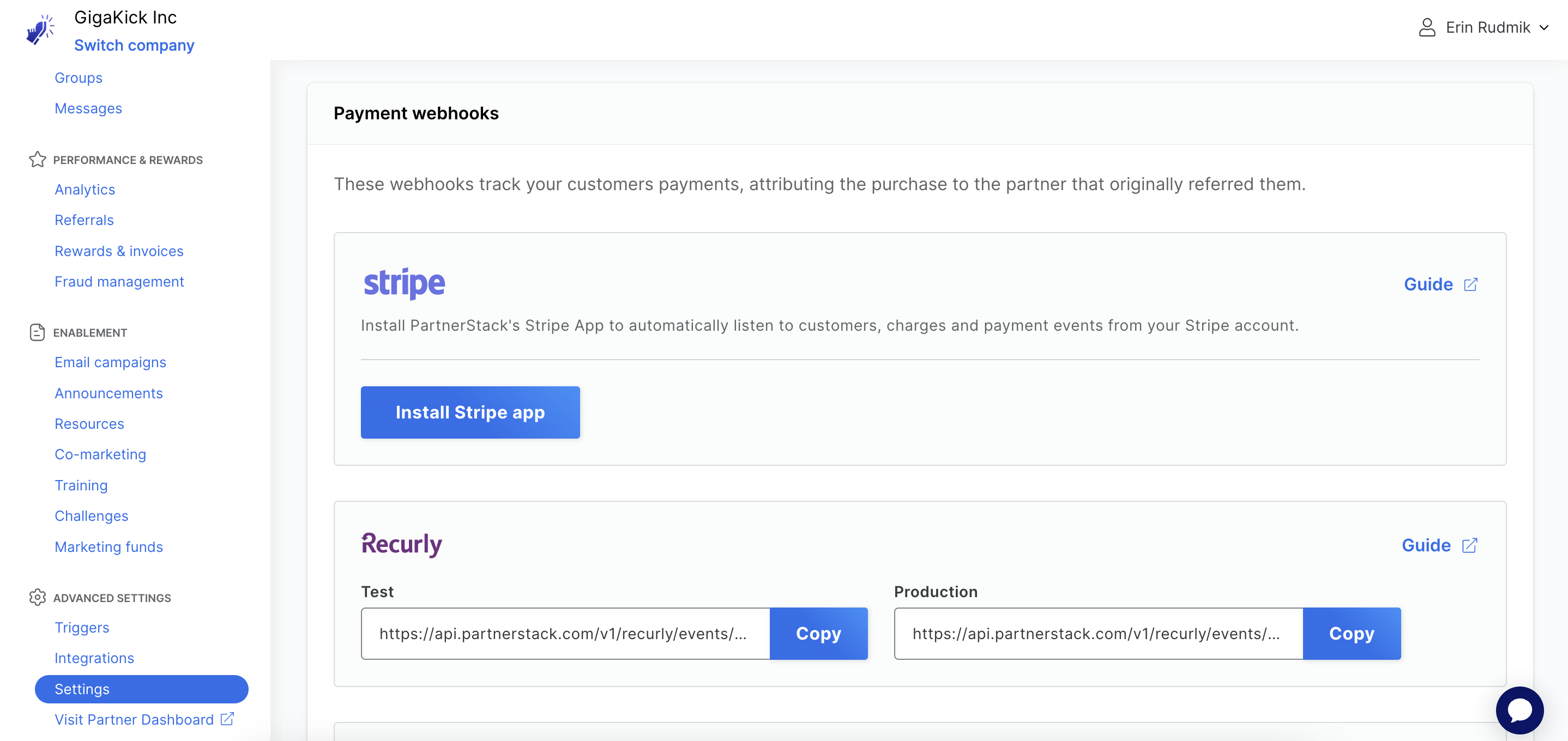
In the PartnerStack dashboard. Navigate to Settings > Integrations > Payment Webhooks and find Stripe from the Supported integrations. Click Install Stripe app.
- Click Install Stripe app
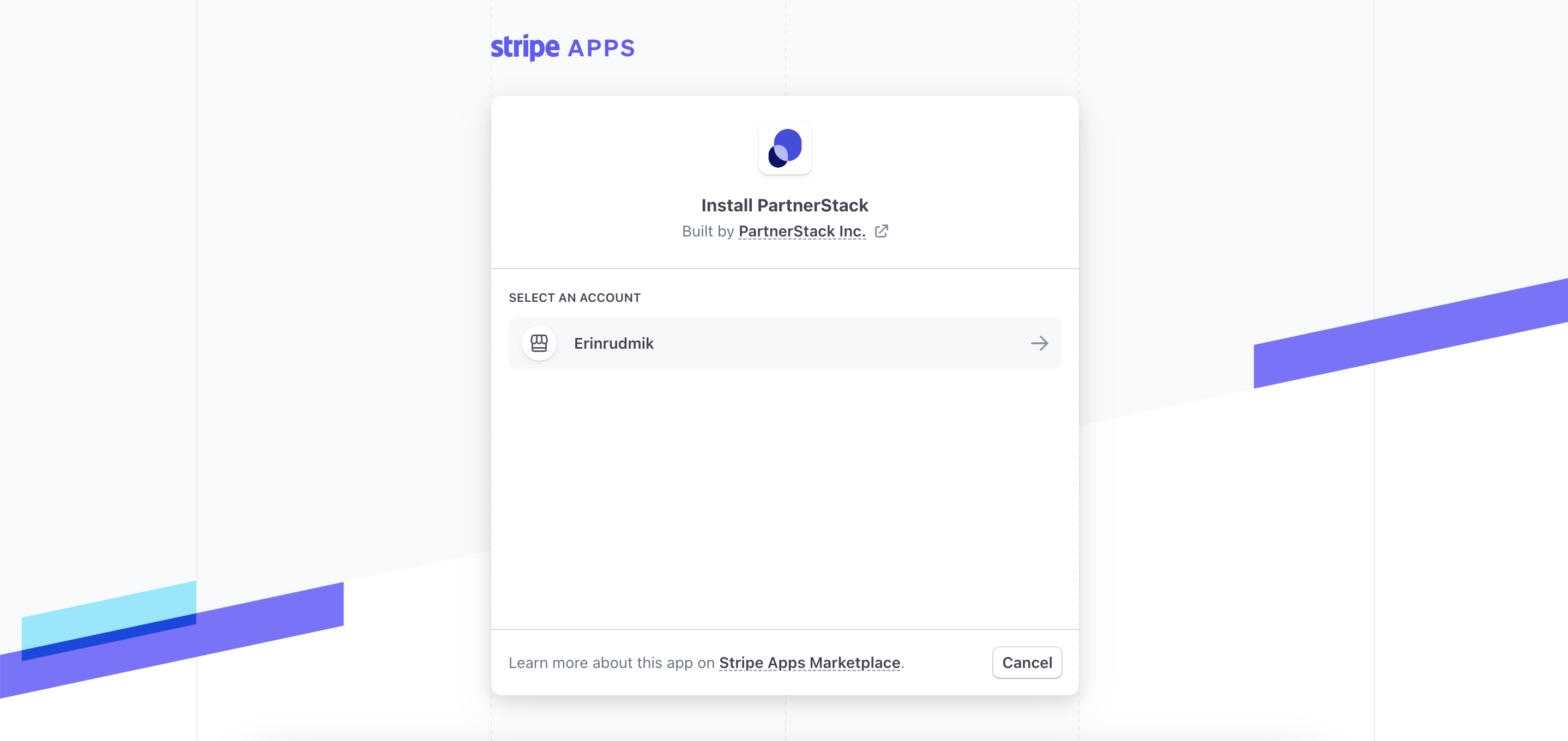
- In the new tab that opens, log into Stripe.
- Select which account you would like to connect to PartnerStack.
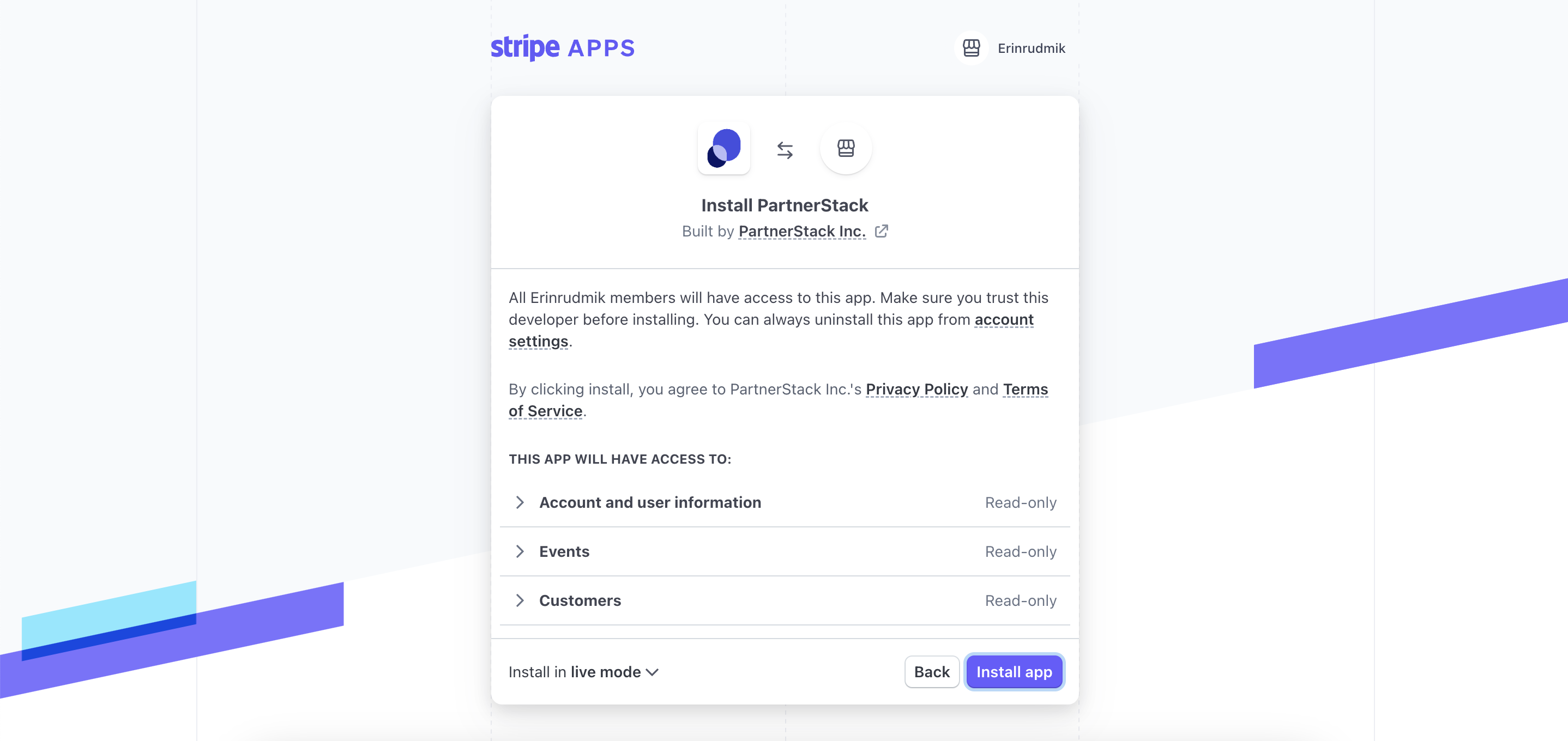
- Review app access, and click Install app. Leave the setting at the bottom-left corner in “Install in live mode”
- After installation, you will automatically be redirected back to PartnerStack after installation, which should display that the app is successfully installed.
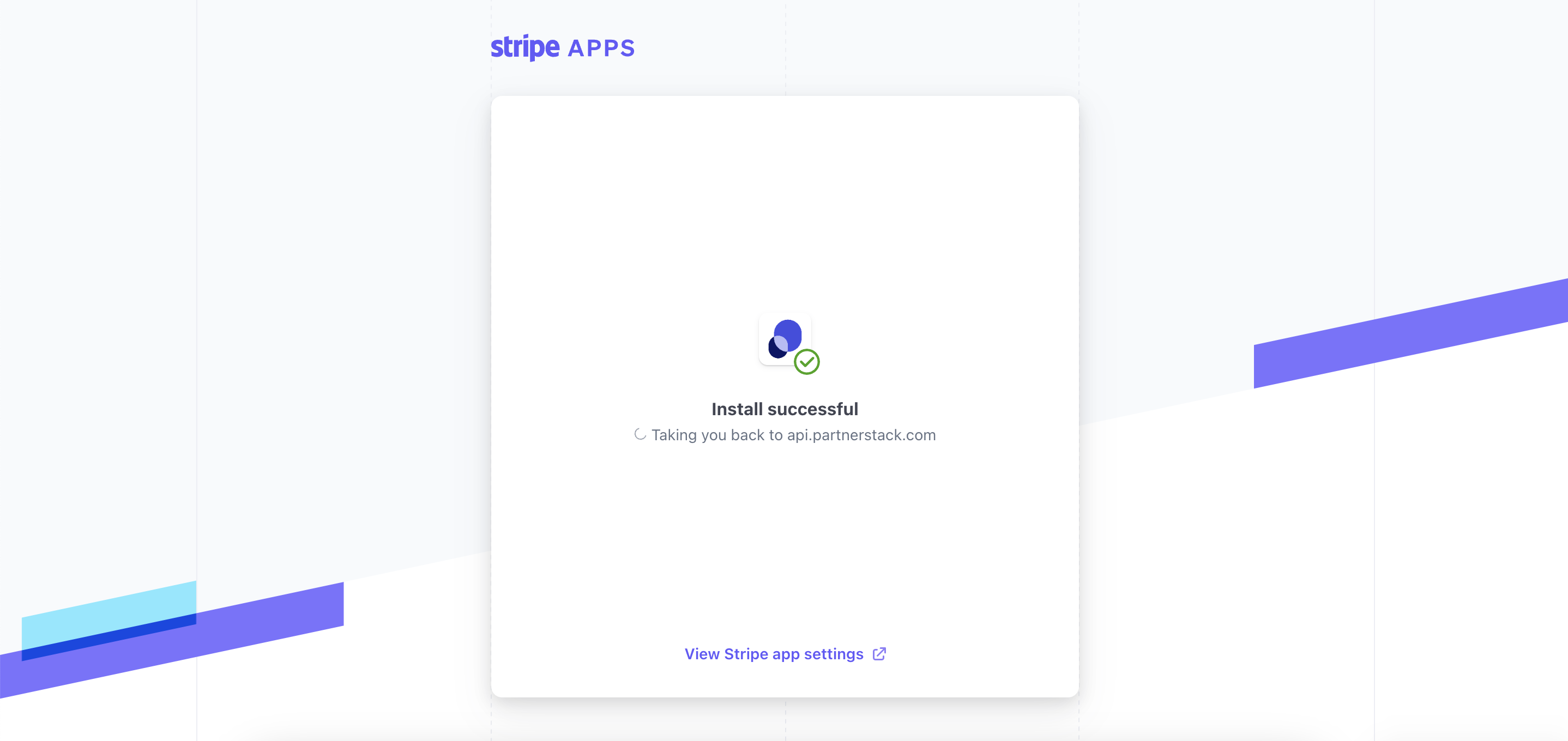
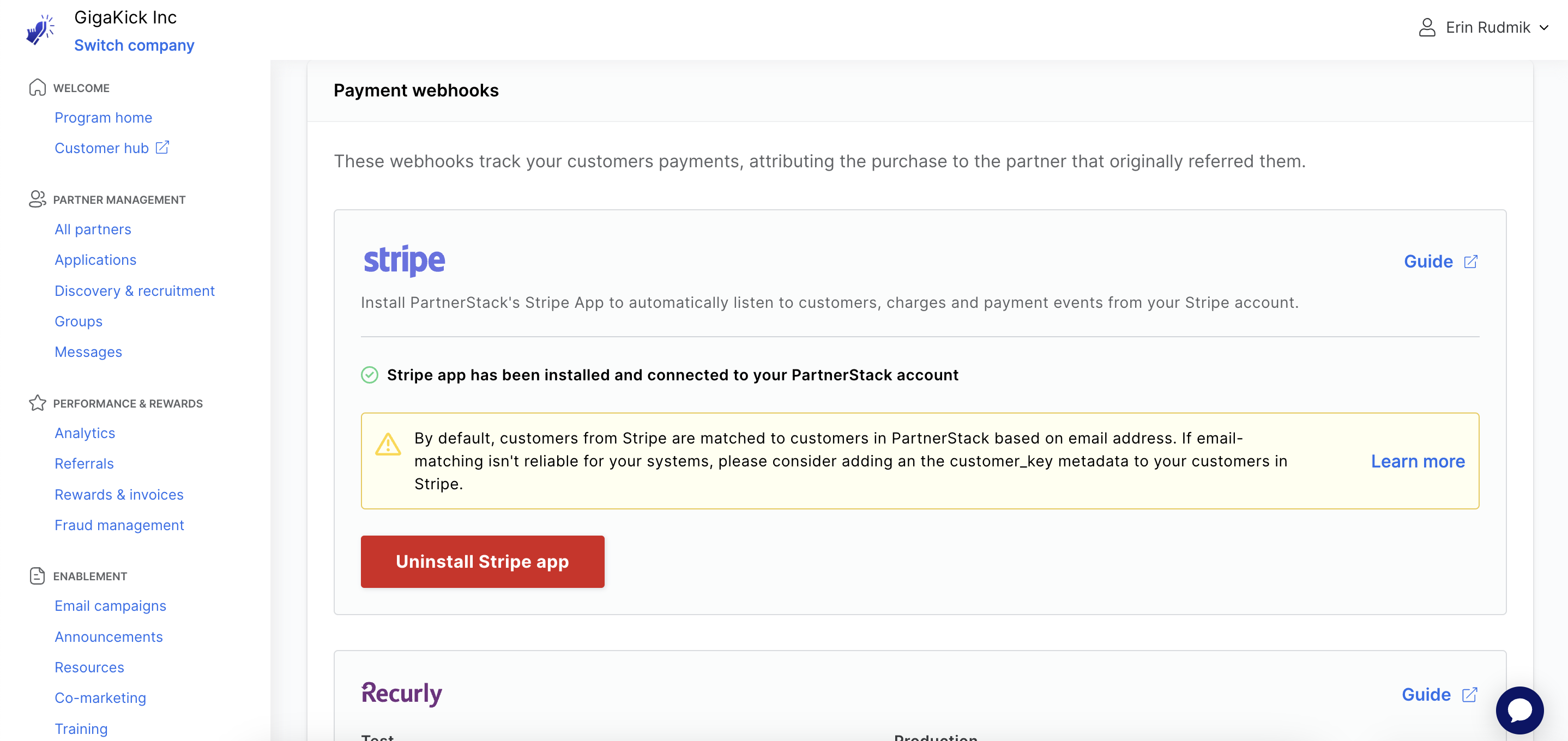
All steps of this installation process must complete in order to successfully integrate PartnerStack with stripe. Quitting midway through this process may require vendors to uninstall the app and reinstall.
Note that
chargeevents are toggled on by default. To useinvoiceevents instead, reach out to the PartnerStack team.
Method 2: Manual Webhooks
Some vendors can integrate with PartnerStack directly by creating a webhook through PartnerStack. This is a more time-consuming approach to integration, so this is disabled for new PartnerStack vendors as of Feb 2024. To make this option available, please contact your CSM.
To connect Stripe to PartnerStack via webhooks manually:
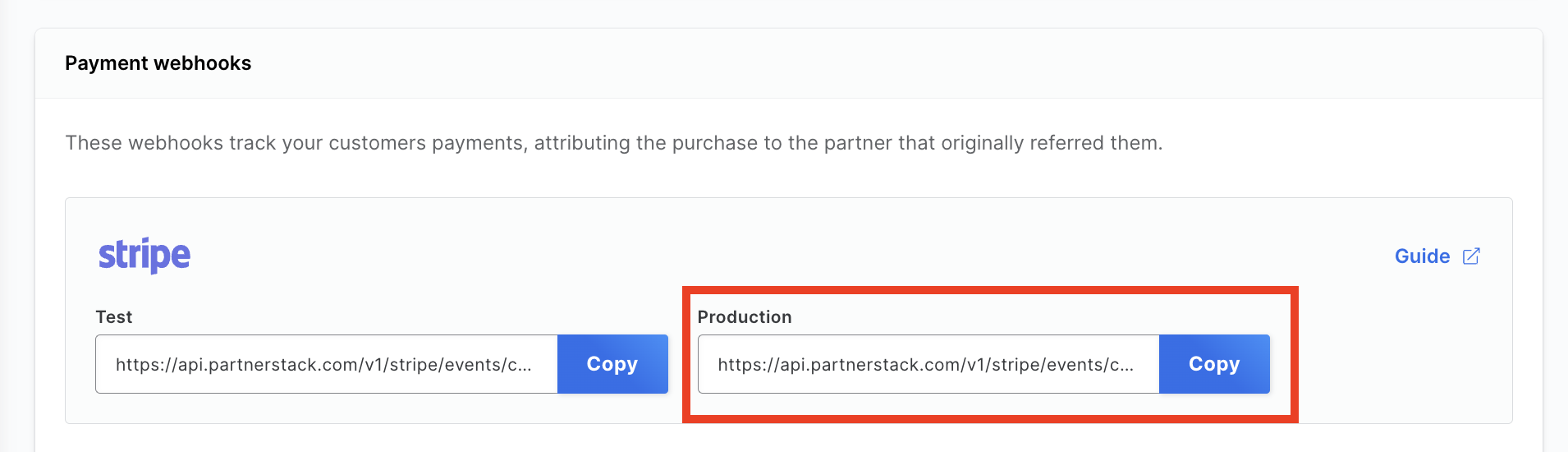
- In the PartnerStack dashboard. Navigate to
Settings>Integrations>Webhooksand selectStripefrom the Supported integrations.
- Log into your Stripe dashboard.
- On the left sidebar, click "Developers", then "Webhooks".
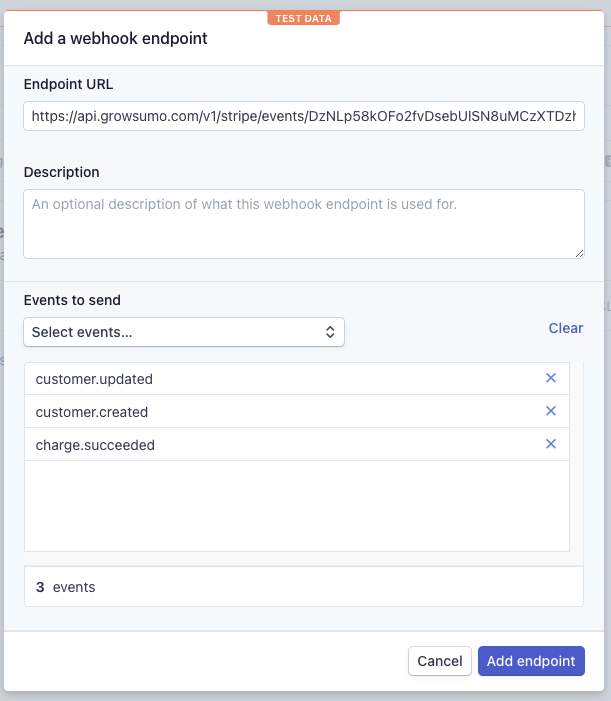
- Click on "+ Add Endpoint" and fill in the URL you copied from your PartnerStack dashboard!
- Select the events you'd like to send to PartnerStack.
- Click "Add endpoint" and you're good to go!
Add customer key to Stripe Metadata
Whenever you interact with Stripe to record transactions under a customer, you need to let PartnerStack know which customer you're referring to. In PartnerStack, we primarily identify customers using their customer key. This can be any value that uniquely identifies customers on your platform, for example their email address.
If you've integrated via the Stripe App, customers are matched between Stripe and PartnerStack using their email address by default. For more reliable matching, we recommend also setting a unique
customer_keyin Stripe metadata (ex. their unique identifier within your CRM).
If you're using PartnerStackJS, this would be the value you used for growsumo.data.customer_key when the customer signed up. If you used our PartnerStack API to create the customer record, this would be the value you passed as the key.
PartnerStack looks for customer_key in the Stripe metadata to identify customers. Below is an example of how this could work on your back-end, but your implementation may vary based on how your product interacts with Stripe!
ADD `metadata` containing the `customer_key`
MAKE SURE it matches the one used with PartnerStackJS

# import stripe
# stripe.api_key = "sk_test_w82a3du.."
# stripe.Customer.create(
      metadata={
        "customer_key":<YOUR_CUSTOMERS_KEY>
      },
#     source="tok_18sjJiIDkGDhAX2xt24vr4Zx"
# )
ADD `metadata` containing the `customer_key`
MAKE SURE it matches the one used with GrowSumoJS
# require "stripe"
# Stripe.api_key = "sk_test_BQokikJOvBiI2HlWgH4olfQ2"
# Stripe::Customer.create(
:metadata => {'customer_key' => <YOUR_CUSTOMERS_KEY>}
# :description => "Customer for [email protected]",
# :source => "tok_189fT12eZvKYlo2CYj4YoHKu" # obtained with Stripe.js
# )ADD `metadata` containing the `customer_key`
MAKE SURE it matches the one used with GrowSumoJS
# <?
# \Stripe\Stripe::setApiKey("sk_test_BQokikJOvBiI2HlWgH4olfQ2");
# \Stripe\Customer::create(array(
"metadata" => array("customer_key" => <YOUR_CUSTOMERS_KEY>)
# "description" => "Customer for [email protected]",
# "source" => "tok_189fT12eZvKYlo2CYj4YoHKu"
# ));ADD `metadata` containing the `customer_key`
MAKE SURE it matches the one used with GrowSumoJS
// Stripe.apiKey = "sk_test_BQokikJOvBiI2HlWgH4olfQ2";
// Map<String, Object> customerParams = new HashMap<String, Object>();
// customerParams.put("description", "Customer for [email protected]");
// customerParams.put("source", "tok_189fT12eZvKYlo2CYj4YoHKu");
Map<String, String> initialMetadata = new HashMap<String, String>();
initialMetadata.put("customer_key", <YOUR_CUSTOMERS_KEY>);
customerParams.put("metadata", initialMetadata);
// Customer.create(customerParams);ADD `metadata` containing the `customer_key`
MAKE SURE it matches the one used with GrowSumoJS
// var stripe = require("stripe")(
// "sk_test_BQokikJOvBiI2HlWgH4olfQ2"
// );
// stripe.customers.create({
// description: 'Customer for [email protected]',
// source: "tok_189fT12eZvKYlo2CYj4YoHKu",
metadata: {"customer_key":<YOUR_CUSTOMERS_KEY>}
// });ADD 'metadata' containing the 'customer_key'
MAKE SURE it matches the one used with GrowSumoJS
// stripe.Key = "sk_test_BQokikJOvBiI2HlWgH4olfQ2"
// customerParams := &stripe.CustomerParams{
// Desc: "Customer for [email protected]",
// }
customerParams.AddMeta("customer_key", <YOUR_CUSTOMERS_KEY>)
// customerParams.SetSource("tok_189fT12eZvKYlo2CYj4YoHKu") // obtained with Stripe.js
// c, err := customer.New(customerParams)Depending on your integration with Stripe your interaction with the metadata could be quite different. Here is a link to the Stripe API Docs for creating a customer.
Please let us know if you have issues figuring out how to do work with metadata, and we will do our best to help out.
You can now test your integration by going to the Testing Suite in the PartnerStack Dashboard. Nice work!
Product Specific Rewards using a product_key
You can reward partners for sales of specific products by including a product_key in the charge or invoice metadata.
- For charge events: include
product_keyin the charge metadata. - For invoice.payment_succeeded events:
product_keyis automatically pulled from the first subscription plan ID on the invoice. You can override this by settingproduct_keyexplicitly in the invoice metadata.
{
  "id": "ch_1Fhd8q2eZvKYlo2CNOTs0hmB",
  "object": "charge",
  "amount": 2000,
  "amount_refunded": 0,
  "balance_transaction": "txn_19XJJ02eZvKYlo2ClwuJ1rbA",
  "billing_details": {
    "address": {
      "city": null,
      "country": null,
      "line1": null,
      "line2": null,
      "postal_code": null,
      "state": null
    },
    "email": null,
    "name": null,
    "phone": null
  },
  "captured": false,
  "created": 1574432988,
  "currency": "usd",
  "customer": null,
  "description": "Charge for [email protected]",
  "dispute": null,
  "disputed": false,
  "failure_code": null,
  "failure_message": null,
  "fraud_details": {},
  "invoice": null,
  "livemode": false,
  "metadata": {
    // Enter product_key here
    "product_key":"productXYZ-101"},
  "payment_method": "card_1Fhd8q2eZvKYlo2CSXwtvRr1",
  "payment_method_details": {
    "card": {
      "brand": "visa",
      "checks": {
        "address_line1_check": null,
        "address_postal_code_check": null,
        "cvc_check": null
      },
      "country": "US",
      "exp_month": 8,
      "exp_year": 2020,
      "fingerprint": "Xt5EWLLDS7FJjR1c",
      "funding": "credit",
      "last4": "4242",
      "network": "visa",
      "three_d_secure": null,
      "wallet": null
    },
    "type": "card"
  }
}
Testing and troubleshooting Stripe Payment Tracking
Tracking payments via Stripe App and Stripe Webhooks can both be tested without the use of actual transactions on a credit card. A full walkthrough of how to test Stripe in particular is available on Loom. See Testing and Troubleshooting Payment Tracking for more information.
Uninstalling Stripe App
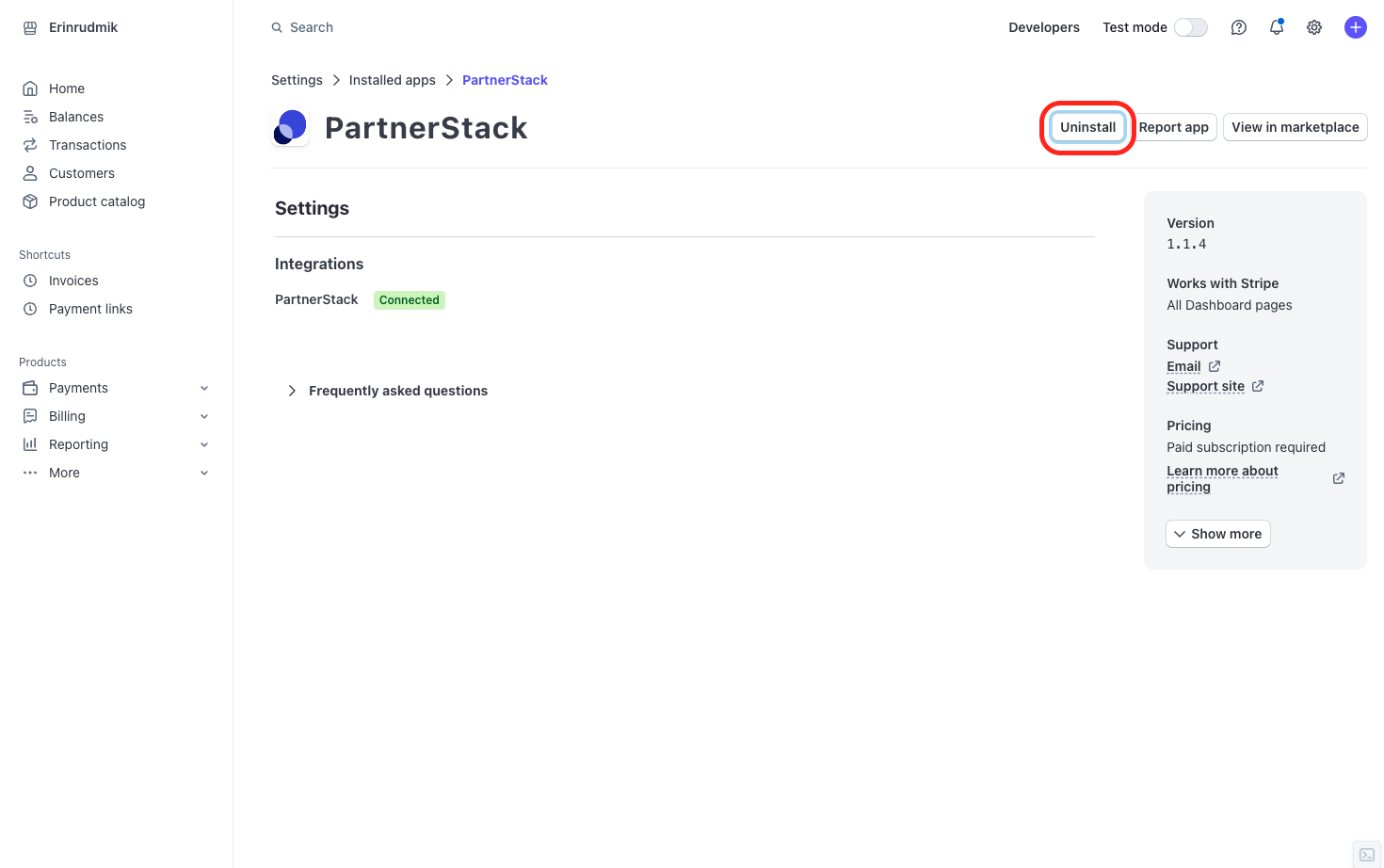
If desired, the Stripe Webhook App can be uninstalled by following these steps:
- Log into your Stripe instance
- Navigate to the PartnerStack app
- Click Uninstall and confirm your uninstallation.
Updated about 2 months ago